Create a new app
You don't have to set up folders or files by hand. Studio can make a fresh app for you, ready to edit.
The New App button
Click + Create New App at the top. A short dialog sets everything up for you, no files or folders by hand:
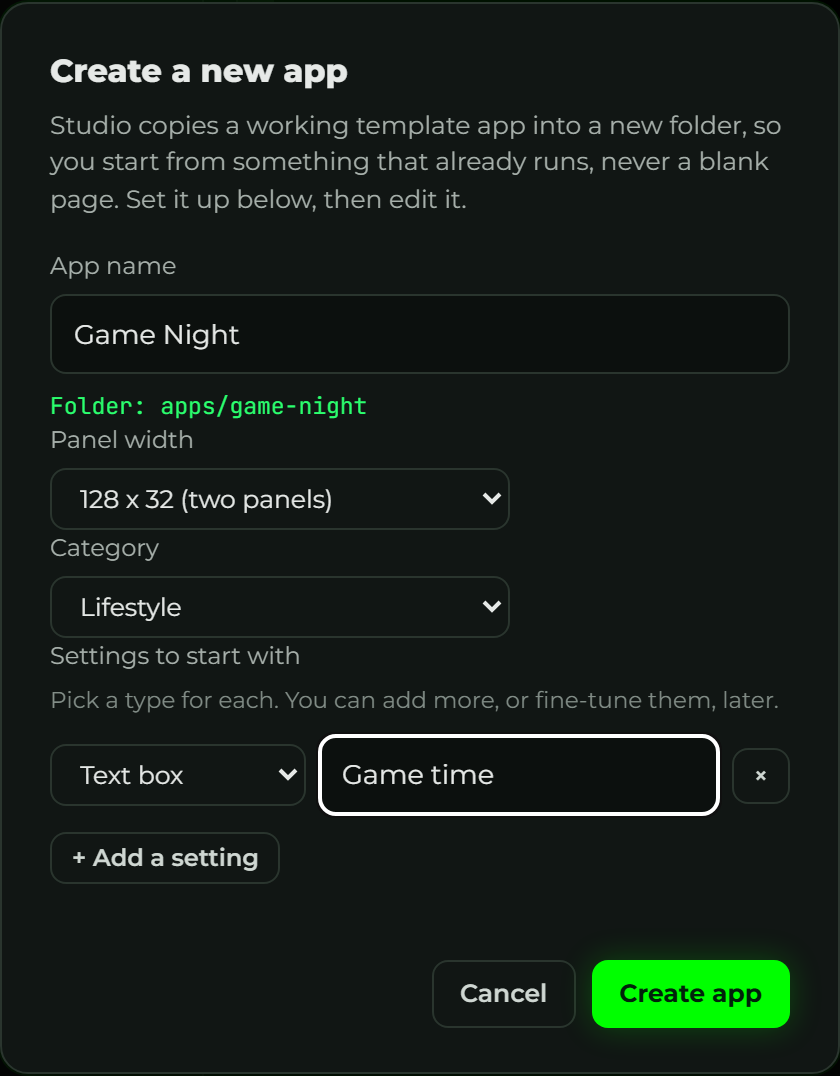
Fill in a few things:
- App name. Studio shows the folder it will make (like
apps/my-fish-tank) as you type. - Panel width. How wide your sign is: 64 (one panel), 128 (two panels), 192 (three), or 384 (six panels, the maximum). Height is always 32.
- Category. What kind of app it is (Sports, Finance, Weather, and so on), used to
group it in the catalog. You can change it later in
manifest.yaml. - Settings to start with. The inputs people fill in when they add your app. Pick a type for each from the dropdown (text box, number, dropdown, checkbox, date, or color) and give it a label, then use + Add a setting for more. Leave it empty for none, and you can always add or change settings later, see Input types.
Click Create app and Studio:
- Copies a working template app into a new folder under
apps/. - Fills in your name, width, category, and the settings you chose.
- Opens it in the editor so you can start changing it right away.
Because it starts from a working template, not a blank page, your very first Save & Render already shows something on the Glance LED. Change it a piece at a time from there.
Missing a file?
Every app needs two files: app.star (the drawing) and manifest.yaml (the settings).
If you open an app that's missing one, Studio shows a banner
with a one-click fix:

Click Create it for me and Studio writes a starter version of the missing file, named to match your app. Then you're back to editing as normal.