GIF Studio
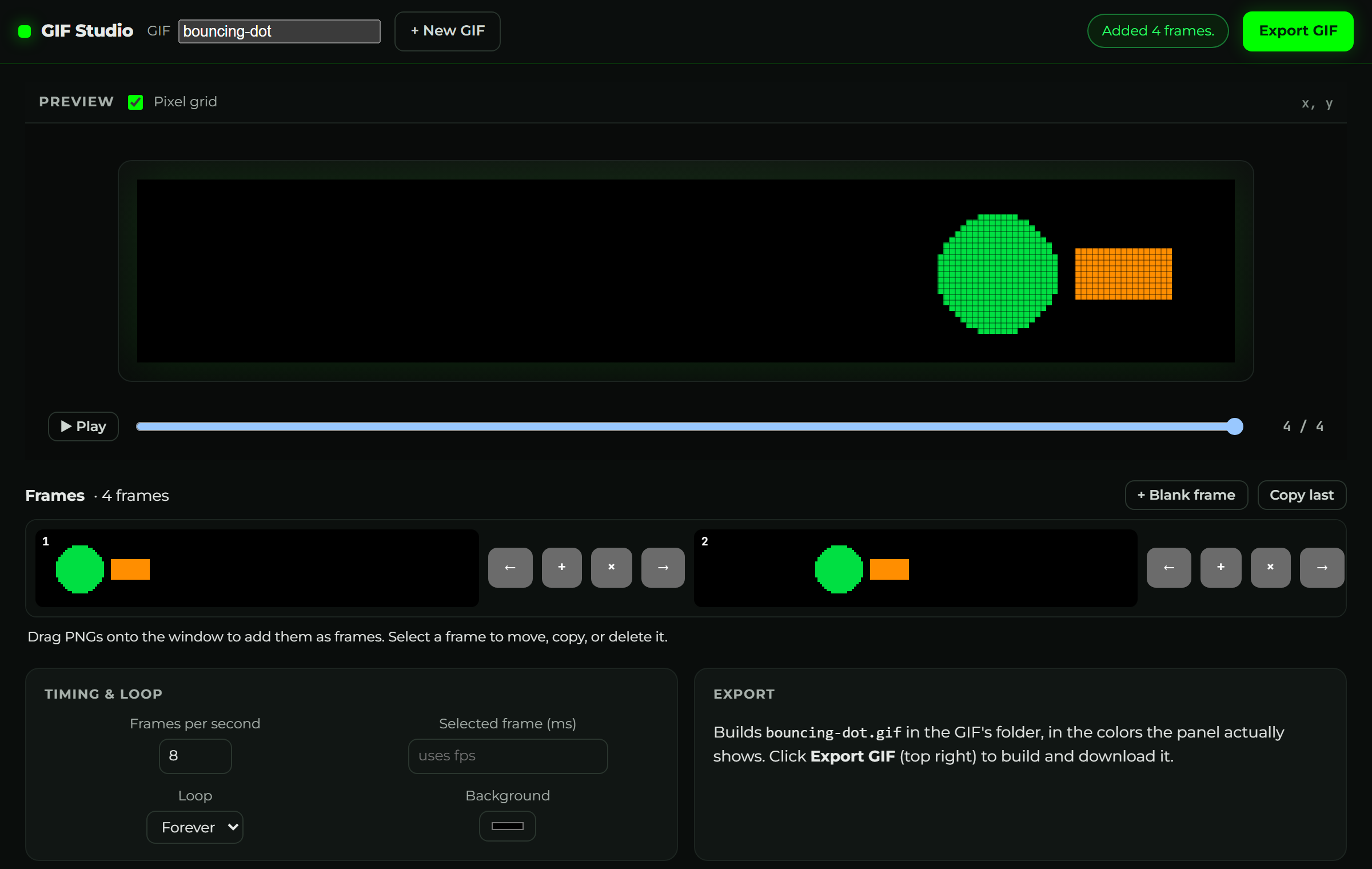
GIF Studio turns your own PNGs into a panel-accurate animated GIF. It's a sister tool to
Glance Dev Studio: the same look, the same live LED preview, but instead of
writing code you drop in pictures, arrange them into frames, set the timing, and export a
.gif. Everything saves to a gifs/ folder in your project, one folder per GIF.
Start it
From your project folder, run:
gdn gifstudio
Your browser opens to http://127.0.0.1:8767. (If you see "already running", it's open in
another tab, switch to it, or stop the other one with Ctrl+C.) You can also double-click
studio_gif.py.
Create a GIF
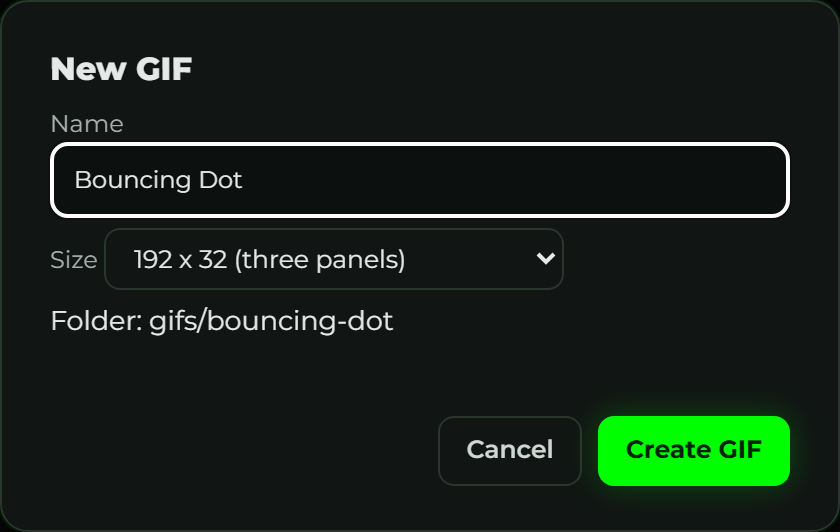
Click + New GIF, give it a name, and pick a size:
| Size | Panels |
|---|---|
| 64 × 32 | one panel |
| 192 × 32 | three panels |
| 384 × 32 | six panels (the max) |
The height is always 32 pixels, that's how tall every Glance panel is. Studio makes a
folder gifs/<your-name>/ to hold the GIF and its frames.
Add frames
Drag PNGs from your computer straight onto the window, as many at once as you like. Each becomes a frame, in the order you dropped them, scaled to fit the panel and centered on the background color.
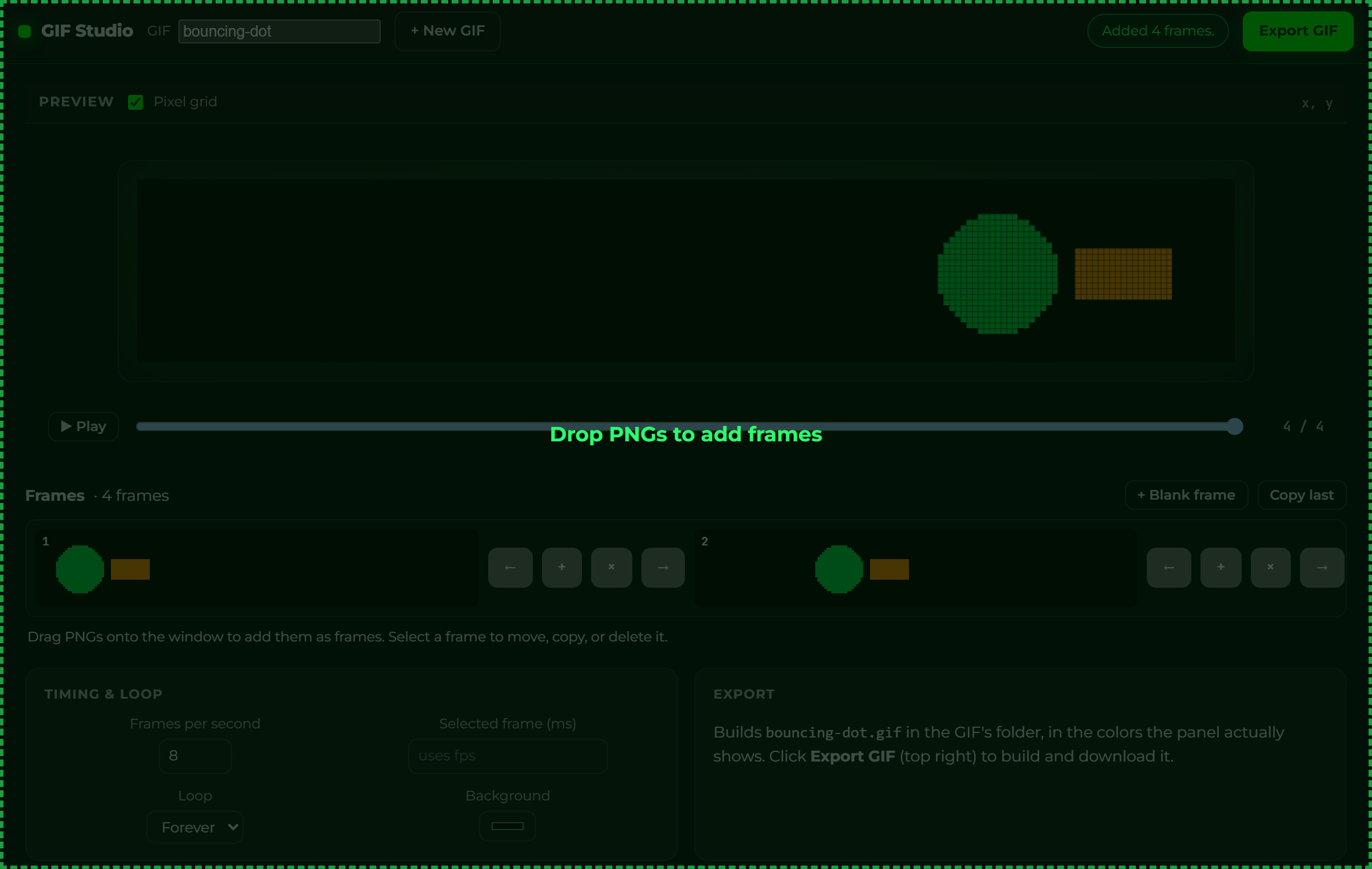
Two buttons above the filmstrip help build frames without a file:
- + Blank frame adds an empty frame in the background color, perfect for a "blink" or a pause.
- Copy last duplicates the final frame, handy for holding a pose a beat longer.
Arrange the timeline
The filmstrip is your timeline. Click a frame to select it; the preview jumps to it and a row of buttons appears on the thumbnail:
| Button | Does |
|---|---|
| ← / → | Move the frame earlier or later |
| + | Duplicate the frame |
| × | Delete the frame |
Timing and looping
The Timing & loop card controls playback:
- Frames per second sets how fast the whole animation runs.
- Selected frame (ms) overrides the duration of just the selected frame, leave it blank to use the fps. (Great for holding one frame longer, like a blink that stays "off" briefly.)
- Loop is Forever, once, or a set number of times.
- Background is the fill behind frames that don't cover the whole panel, and the color of blank frames.
Preview it like the panel
- Play / Pause runs the animation at its real timing; the slider scrubs frame by frame.
- Pixel grid outlines each pixel while you line things up.
- Hovering the panel shows the x, y pixel under your mouse.
LED panels can only show the colors that fit in their 5-6-5 (RGB565) format. The preview and the exported GIF both round every color to what the hardware can actually display, so what you see here is what the sign will show, no surprises after export.
Export
Click Export GIF (top right). Studio builds gifs/<your-name>/<your-name>.gif in
panel-accurate colors and downloads a copy. Re-export any time you change a frame or the timing.
Examples
1. A blinking "OPEN" sign
The simplest animation: one picture, then nothing, on repeat.
- New GIF, name it
open-sign, size 192 × 32. - Drop in your
open.png(your text or logo). - Click + Blank frame to add an empty frame after it.
- Set Frames per second to
2, Loop to Forever. - Select the blank frame and set Selected frame (ms) to
250so the "off" is a quick blink. - Play to check it, then Export GIF.
Two frames, and your sign blinks.
2. Something sliding across
Motion is just frames where the thing moves a little each time.
- New GIF, size 192 × 32.
- Make (or export, see example 3) a handful of PNGs where your subject is a few pixels
further along in each one,
dot-1.png,dot-2.png,dot-3.png,dot-4.png. - Select them all and drop them together, they land as frames 1-4 in order.
- Set Frames per second to
10for smooth motion, Loop Forever. - Export GIF.
To make it bounce back, add Copy last and then use ← to reorder copies of the earlier frames onto the end (or duplicate and move frames to build a there-and-back sequence).
3. Draw the frames in Glance Dev Studio
You don't need an art program, Glance Dev Studio already draws to the panel.
- In Dev Studio, draw your first frame (text, shapes, an icon, a placed image), then click Save PNG (in the preview controls) to download it.
- Change something small, move an icon, change the text, click Save PNG again.
- Repeat for each frame.
- In GIF Studio, drop all those PNGs in at once and set your fps.
This is the bridge between the two tools: build the look in Dev Studio, animate it here.
For tiny hand-drawn frames, use Dev Studio's Pixel art editor to paint each pose, Save PNG each one, and drop them in. See Working with images.
What's in a GIF folder
gifs/open-sign/
├─ gif.json          # the frame order, timing, and settings
├─ frames/           # each frame as a PNG, already sized to the panel
│   ├─ 0001-open.png
│   └─ 0002-blank.png
└─ open-sign.gif     # the exported animation
gif.json is the source of truth, GIF Studio reads and writes it. The .gif is the build
output; it's safe to commit, and safe to edit the folder in another program (the frames are
plain PNGs).
Troubleshooting
| Problem | Fix |
|---|---|
| "That's a JPEG file. Frames must be PNGs." | Re-export your image as a .png and drop it again. |
| A frame looks squashed or letterboxed | Imports are scaled to fit the panel and centered on the background; make the source closer to the panel's shape (wide and short) for edge-to-edge. |
| The GIF plays faster than my fps in a browser | Browsers clamp very short frame times; keep frame durations at 20 ms or more. |
| "already running" on launch | GIF Studio is open in another tab, or stop the other copy (Ctrl+C in its terminal). |