How the Glance LED works
A mental model of the hardware makes the rest easier to follow. There are only four ideas.
1. It's a grid of pixels
The Glance LED is a grid of lights, always 32 pixels tall. A single Glance panel is 64 pixels wide, and panels daisy-chain to make wider displays, up to 384 pixels wide in theory. For best performance, keep images to 192 pixels wide or smaller and split content across multiple pages. Your app draws by lighting pixels. There's nothing else to it, no layers, no sub-pixels, just a grid you fill in.
Because it's small, big bold shapes and high-contrast colors read best. A photo shrunk to 32 pixels turns to mush; a chunky icon and large text look great.
2. Coordinates start top-left
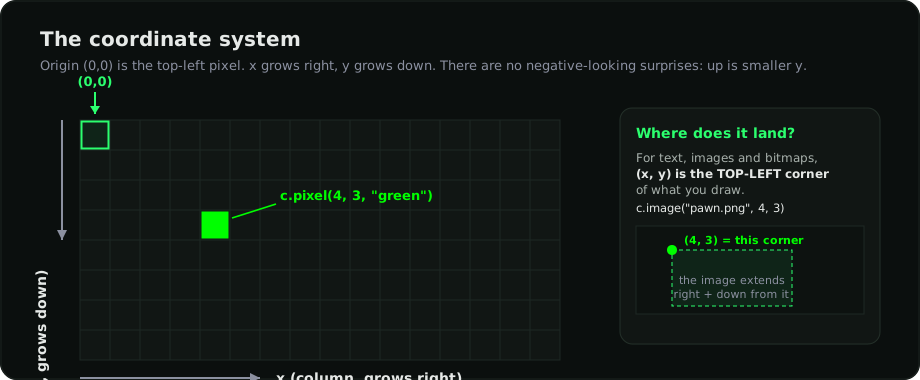
Every position is a pixel coordinate. (0, 0) is the top-left; x grows right, y
grows down. For text, images, and bitmaps, (x, y) is the top-left corner of what
you draw.
3. An app has pages, and they rotate
An app can show more than one screen. Each page is a still image, and the Glance LED cycles through them in order, then loops.
All pages in one app are the same size, the width × height set in the app's
manifest.yaml. You can't mix a 128×32 page and a 64×32 page in the same app.
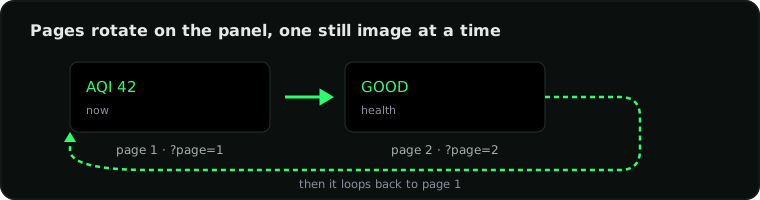
The render URL picks a page by number: ?page=1 is the first, ?page=2 the second.
More on this in Pages.
4. It re-renders on a schedule
Your app re-renders on a timer set by refresh (in seconds), and each render is
one fresh still image with the latest data.
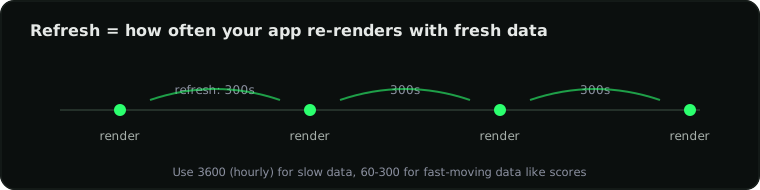
Each render is one still image. Your Glance LED keeps itself current by re-rendering on
the schedule you set with refresh in manifest.yaml, for example refresh: 300
redraws every 5 minutes. To show change over time, let the next refresh draw the new
numbers.
Colors
Anywhere a color is accepted you can pass a name ("green", "amber", "red",
…), a hex string ("#00FF00"), or an (r, g, b) value. Glance's brand green is
#00FF00. See the color struct
for the full list plus color.dim().
That's the whole model: a small pixel grid, top-left coordinates, rotating pages, and a refresh timer. When you're ready, head to Getting started.