Working with images
There are two ways to get a picture on the panel:
- A built-in icon (
c.icon("sun")): no file needed, best for common glyphs. - Your own PNG (
c.image("logo.png", …)): for a specific logo or photo.
Once a picture is on the panel, you can drag it into place visually in Glance Dev Studio, no coordinates to guess.
Built-in icons
GDN ships a set of small icons. Nothing to import, size, or place a file for, just name one:
c.icon("sun", 4, 8) # weather, sports, arrows, hearts, and more
See the icon list for what's available. Reach for your own PNG only when no icon fits.
Your own image: import and size
An image is a PNG file that lives in your app folder, declared in the manifest, and drawn
by app.star. Two moving parts (placing it is a drag away, see the next section):
1. Import: put the file in the folder
Save the PNG next to app.star (or in an assets/ subfolder) and list it under assets:
in the manifest so GDN bundles it:
apps/game-night/
├─ manifest.yaml
├─ app.star
└─ pawn.png          # your image
# in manifest.yaml
assets:
  - pawn.png
If it isn't in the folder and in assets:, it won't draw. (Validation catches this with
"asset 'pawn.png' not declared in manifest assets.")
2. Size: the panel is only 32px tall
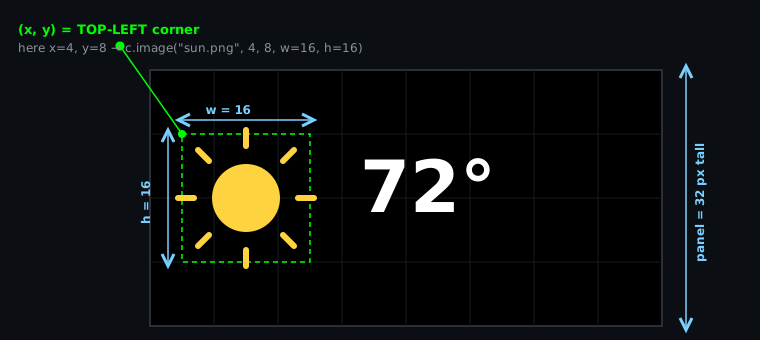
Set the size with w= and h= when you draw it. Because the panel is 32 pixels tall, a
full-height image is 32px, and most icons look best around 16px:
c.image("pawn.png", 4, 3)              # original size
c.image("pawn.png", 4, 3, w=9, h=13)   # scaled to 9x13 (crisp nearest-neighbor)
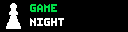
Put together, that's the Game Night sign, a PNG plus two words (the (x, y) you pass is the
image's top-left corner, and you set it by dragging, see below):
def sign(c, ctx):
    c.fill("black")
    c.image("pawn.png", 4, 3)
    c.text("GAME", 30, 4, font="7x12", color="green")
    c.text("NIGHT", 30, 18, font="7x12", color="white")
Place it visually in Glance Dev Studio
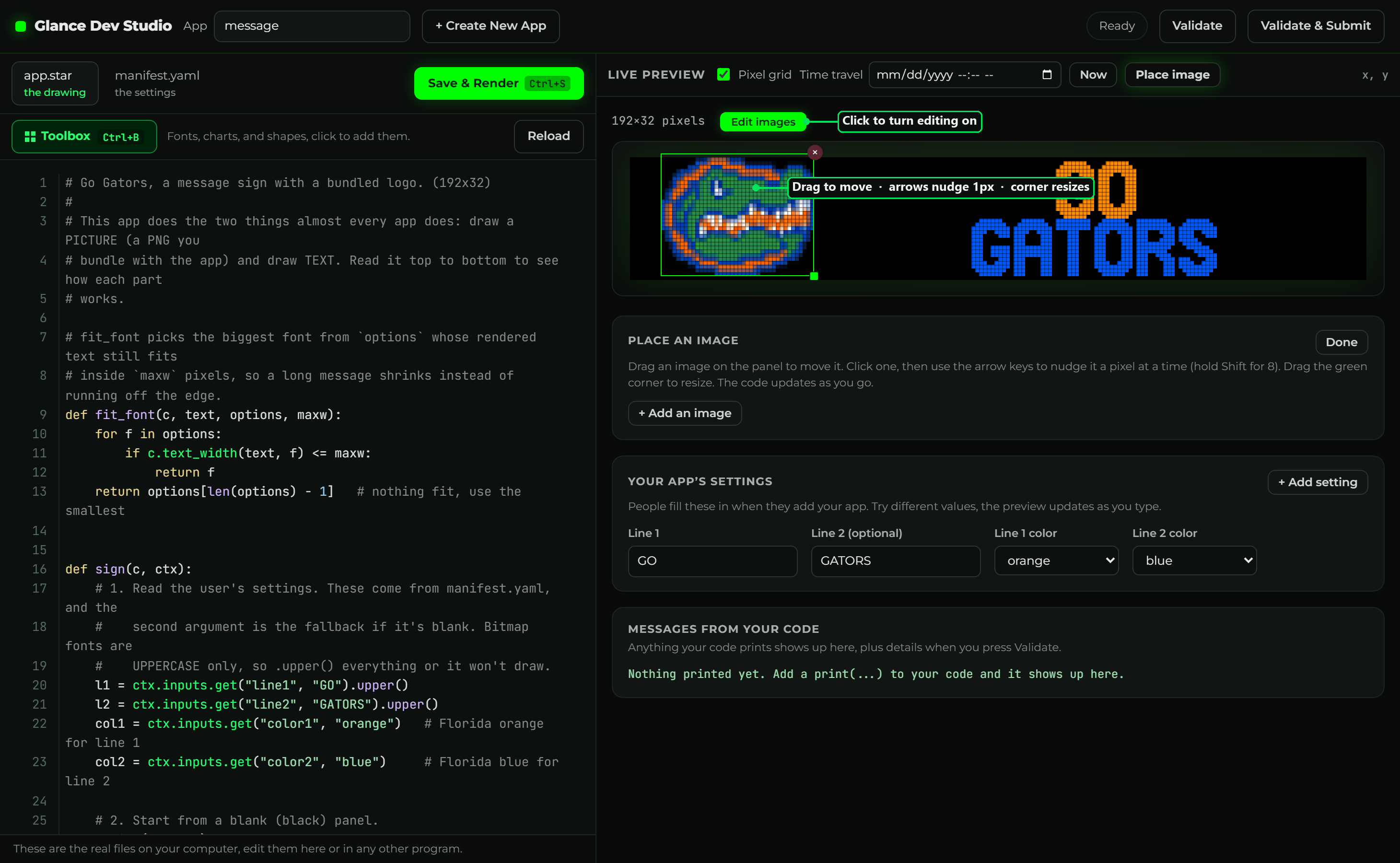
Guessing x and y numbers is fiddly. Instead, open your app in Studio and
drag the picture right on the panel. When your app draws an image, an Edit images button
appears next to the panel size at the top of the preview. Click it (it lights up green) and
every picture on the panel becomes draggable. The c.image(...) code updates itself as you
go:
Drag a PNG straight from your computer onto Studio and it's imported for you, copied into
assets/, shrunk to fit the panel if it's too big, declared in the manifest, and dropped on
the panel ready to drag. Nothing to move by hand.
- Move. Drag the image where you want it. Its
xandychange to match. - Nudge. Click the image, then use the arrow keys to move it one pixel at a time (hold Shift for 8).
- Resize. Drag the green corner. Studio fills in or updates
wandh, and won't let you go past the panel size. - Undo / remove. With an image selected, press Ctrl+Z to undo, or Delete (or the ×) to take it out of the code.
- Add a new one. Click + Add an image and pick a PNG from your app.
It works on any c.image(...) line, whether you wrote it or an AI did. If the x and y are
plain numbers you can drag it; if they are worked out in code (like c.width // 2), Studio
points you to the code to change it.
Making an image with AI
You don't have to be an artist. An AI image tool like ChatGPT is a fast way to get a small, panel-friendly graphic: ask it for a tiny pixel-art version of what you want.
generate me a 30 x 18 pixel image of the florida gator football logo
Swap the subject for anything. These two came from that exact prompt (the second just said "miami marlins"):


The tool usually returns a bigger image than you asked for, so shrink it to panel size and clear the background so it's transparent. A follow-up like "make this crisp at a small size with a transparent background" usually does it. For a photo that looks muddy when shrunk, tell the AI "make it punchy and clear at this small size."
Team logos, brand marks, and other artwork are trademarked or copyrighted by their owners. An app that uses one can be removed at any time, at the discretion of the Glance team or the relevant rights holders. For anything you publish, use your own artwork or images you are licensed to use.
Tiny custom art, with no file
For small, simple shapes you don't even need a PNG. Think pixel-art paint-by-numbers: you
write a grid of 1s and 0s, and c.bitmap lights up a pixel everywhere there's a 1 and
leaves a 0 dark. Each number in the grid is one pixel on the panel.
CAT = [
    [0,1,0,0,0,0,1,0],
    [0,1,1,0,0,1,1,0],
    [0,1,1,1,1,1,1,0],
    [1,1,0,1,1,0,1,1],
    [1,1,1,1,1,1,1,1],
    [1,0,1,1,1,1,0,1],
    [1,1,1,1,1,1,1,1],
    [0,1,0,1,1,0,1,0],
]
c.bitmap(CAT, 2, 12, "gray")   # 8 pixels wide, drawn at (2, 12), in gray
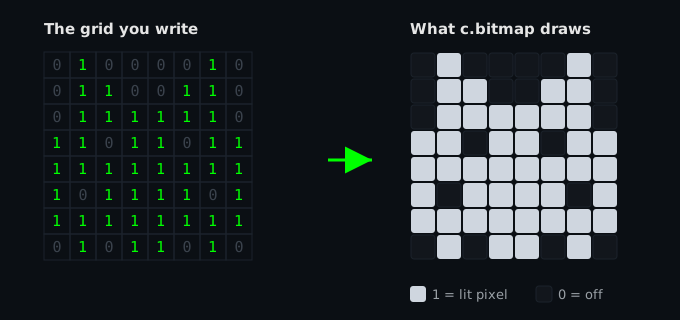
Change a 0 to a 1 and that pixel lights up; pass a different color and the whole thing
recolors. Handy for a custom glyph the icon set
doesn't have.
Draw it, don't type it
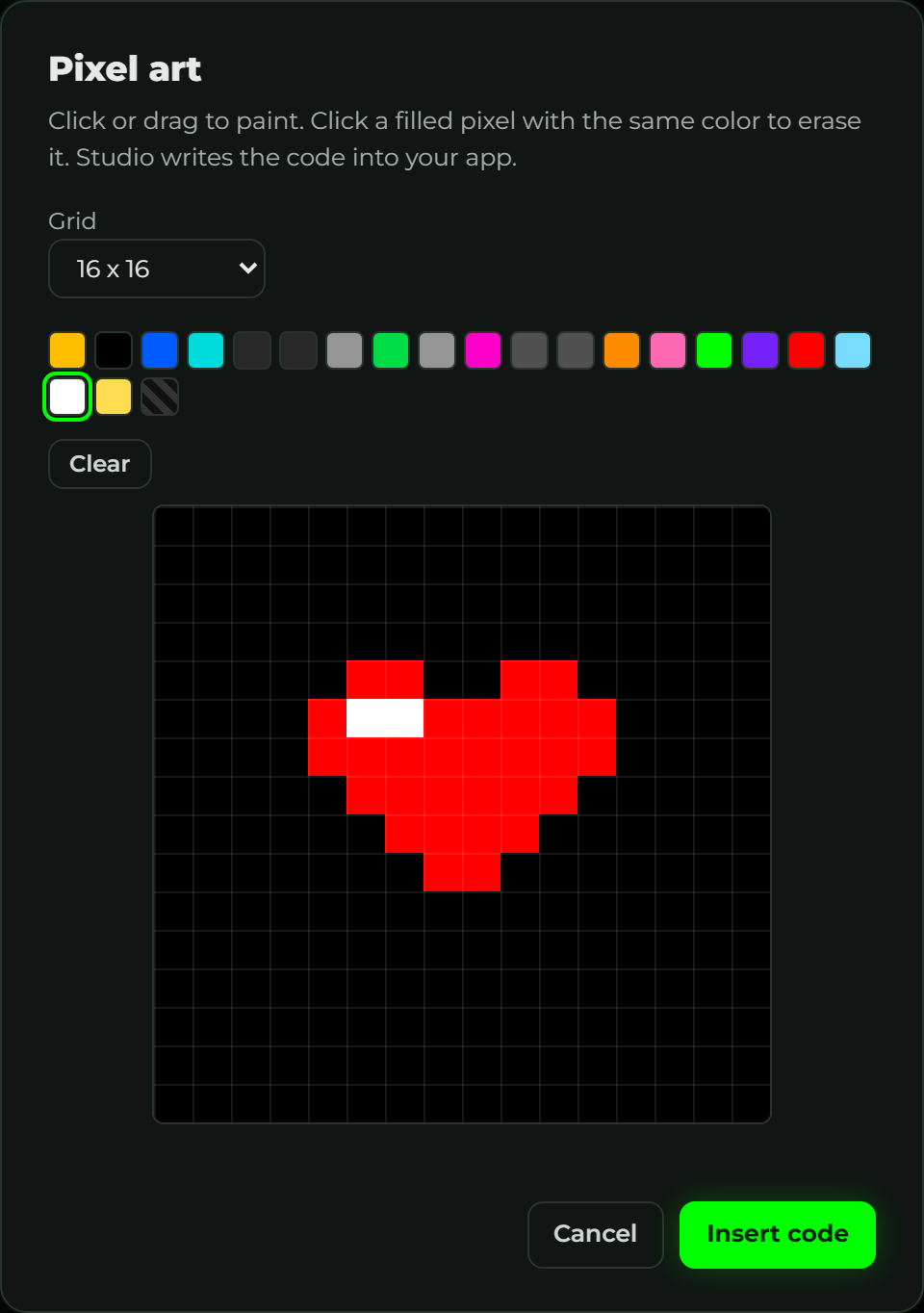
You don't have to write the grid by hand. In Studio, click Pixel art above the editor to
paint on a grid with a color palette, and Studio writes the c.bitmap(...) for you (or a
c.sprite(...) when you use more than one color). Put your cursor on an existing one and
click Pixel art again to edit it.
The limits
| Rule | Limit |
|---|---|
| Format | PNG only |
| File size | ≤ 128 KiB |
| Dimensions | ≤ 384 × 64 pixels |
| Declared | listed under assets: in the manifest |
GDN can't fetch a live image from a URL as the whole screen, the picture has to be a file in
the app folder (or a c.bitmap / c.icon).
When it doesn't show up
Almost every "my image is missing" comes down to one of these:
| Symptom | Fix |
|---|---|
| Nothing draws | The PNG isn't in assets:, or the filename doesn't match exactly (case-sensitive). |
| Only a corner shows | It's bigger than the panel, pass smaller w=/h= or resize the file. |
| It's in the wrong spot | Remember (x, y) is the top-left corner, not the center, or just drag it in Studio. |